How to Watch IPTV on VLC (Windows, Mac, Android and iPhone)
VLC plays an IPTV M3U link in under a minute on any computer or phone. The exact menus on each platform, how to fix a playlist that will not load or keeps buffering, and…
Short answer
To watch IPTV on VLC, copy your M3U link, open VLC and choose Media → Open Network Stream on Windows (Ctrl+N) or File → Open Network on a Mac (Cmd+N), paste the link and press Play. Open the playlist with Ctrl+L to pick a channel. On a phone, VLC’s Network or New stream option does the same. VLC is perfect for testing a line or watching on a laptop, but it has no TV guide, so for everyday viewing on a TV a dedicated IPTV player is better.
VLC is free, installed on half the computers in the world, and plays almost any stream you give it. That makes it the quickest way to confirm an IPTV line works — we suggest it to every trial customer before they set up a TV. Here are the exact steps on each platform, and the three things that go wrong.
What You Need
- VLC media player, downloaded from the official VideoLAN website (Windows, macOS, Linux) or the App Store / Google Play (iPhone, iPad, Android).
- Your M3U link. It looks like
http://server:port/get.php?username=XXX&password=YYY&type=m3u_plus&output=ts. TrendyScreen sends it with your login details; if you only have Xtream Codes details, you can build the link from them — see Xtream Codes vs M3U. - A stable connection. Around 15 Mbps for HD, more for 4K. A laptop on a cable will always behave better than one on Wi-Fi two rooms away.
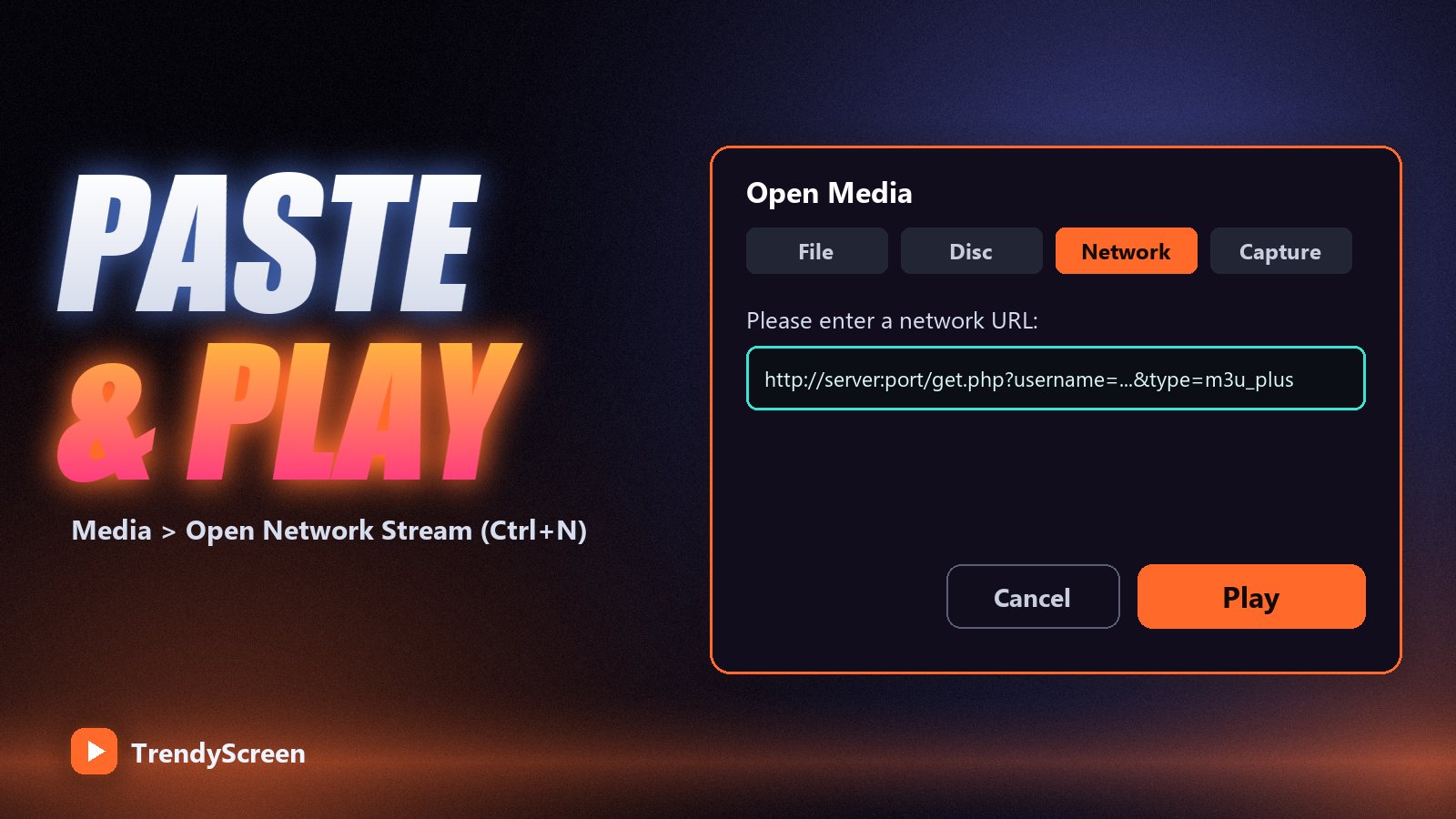
Windows
- Open VLC and choose Media → Open Network Stream, or press Ctrl+N.
- Paste your M3U link into the network URL box. Make sure nothing extra was copied with it — no spaces, no line breaks.
- Press Play. VLC reads the playlist and starts the first channel.
- Press Ctrl+L (or View → Playlist) to see every channel. Use the search box at the top of the playlist to jump to a channel by name; double-click to play it.
- To keep it for next time, choose Media → Save Playlist to File (Ctrl+Y) and save it as an
.m3ufile. Double-clicking that file later opens the channels directly.
Mac
- Open VLC and choose File → Open Network, or press Cmd+N.
- Paste the M3U link into the URL field and click Open.
- Open the playlist with Window → Playlist (Cmd+Shift+P) and double-click a channel.
Android Phone or Tablet
- Install VLC for Android from Google Play and open it.
- Tap More (the three dots or the More tab), then New stream.
- Paste the M3U link and tap the play arrow. The channel list opens as a playlist you can scroll and search.
iPhone and iPad
- Install VLC for Mobile from the App Store.
- Open the Network tab and choose Open Network Stream.
- Paste the link and tap Open Network Stream. For regular viewing on Apple devices, Smarters Player Lite is the better choice — our Smarters Player Lite guide shows the setup.
When VLC Will Not Play: Three Common Problems
1. “Your input can’t be opened”
VLC could not reach the playlist. Check the link was copied completely — M3U links are long and phones often cut them at a line break. Make sure it starts with http://, that the username and password inside it are correct, and that the subscription has not expired. Then test the same link on your phone using mobile data: if it fails there too, ask your provider.
2. The playlist takes forever or VLC freezes
A full playlist with tens of thousands of channels and films is a very large file, and VLC loads all of it before it shows anything. Give it a minute or two on the first load. If it still struggles, ask support for a smaller playlist with only the countries or categories you watch — or use a proper IPTV player, which loads categories on demand instead of all at once.
3. The picture buffers or stops every few seconds
Raise VLC’s buffer. On a computer: Tools → Preferences, set Show settings to All, open Input / Codecs and increase Network caching (ms) from the default to about 3000. Save and restart VLC. If it still buffers, the cause is the network rather than VLC — work through our IPTV buffering fixes, starting with an Ethernet cable.
Change the stream format if a channel will not start. M3U links end in output=ts or output=m3u8. VLC plays both, but if a particular channel refuses to open, try the link with the other ending.
What VLC Cannot Do
| Feature | VLC | A dedicated IPTV player |
|---|---|---|
| Plays live channels | Yes | Yes |
| TV guide (EPG) | No | Yes — see what EPG is |
| Catch-up | No | Yes, on supported channels |
| Films and series sorted by category | One long list | Separate Movies and Series sections |
| Favourites and parental lock | No | Yes |
| Quick test of a line | Best tool for it | Takes longer to set up |
Use VLC to test a line, to watch on a laptop or to play one channel quickly. For a television, install a real IPTV player: IPTV Smarters Pro on a Firestick, TiviMate on Android TV, or one of the apps in our best IPTV player comparison. VLC also counts as a screen while it plays, so it uses one of your plan’s connections — see how many devices you can use.
Frequently Asked Questions
Can VLC play IPTV?
Yes. VLC plays IPTV through an M3U link: open it as a network stream and the channel list loads as a playlist. It works on Windows, Mac, Linux, Android, iPhone and iPad.
How do I open an M3U playlist in VLC?
On Windows choose Media, Open Network Stream; on a Mac choose File, Open Network. Paste the M3U link, press Play, then open the playlist view to choose a channel. A saved .m3u file can also be opened by double-clicking it.
Why does IPTV buffer in VLC?
VLC’s default network buffer is small. Raise Network caching to about 3000 ms in the advanced preferences under Input / Codecs. If it still buffers, the connection is the bottleneck, so try a wired connection.
Does VLC show the TV guide?
No. VLC plays the channels but has no electronic programme guide or catch-up. For the guide, use a dedicated player such as IPTV Smarters Pro or TiviMate with your Xtream Codes login.
Can I use Xtream Codes in VLC?
Not directly. VLC needs an M3U link, but you can build one from Xtream Codes details: the server URL followed by get.php with your username, password, type=m3u_plus and output=ts.
Test a line in VLC before you pay
Ask for the TrendyScreen 24-hour trial, paste the M3U link into VLC and see 75,000+ live channels on your own computer in a minute. Plans from $5 a month when you are ready.
Keep Reading

Lifetime IPTV Subscription: Is a One-Time $150 Plan Worth It?
A lifetime IPTV plan can be the cheapest TV you ever buy or money thrown away. The break-even maths, the…
Read more →
What Is EPG on IPTV? How the TV Guide Works and How to Fix a Missing One
EPG is the TV-guide grid in your IPTV app. Where the data comes from, why it goes blank or shows…
Read more →
TrendyScreen Review 2026: Plans, Channels and What You Actually Get
An honest look at TrendyScreen — the 75,000+ channel library, the $15 to $120 price ladder, the $150 Lifetime plan…
Read more →