IPTV Smarters Pro Not Working? 12 Fixes That Get You Watching Again
Black screen, endless spinner or "invalid username" in IPTV Smarters Pro? Twelve fixes, in the order a support agent actually works through them.
Short answer
When IPTV Smarters Pro stops working, the cause is almost always one of five things: a typo in the server URL, an expired or over-connected subscription, the wrong stream format, a stale app cache, or the network between your device and the server. Work through them in that order and roughly nine problems in ten clear up in under ten minutes — without reinstalling anything and without a new subscription.
This is the triage sheet our support team uses. It is written for IPTV Smarters Pro, but every step applies just as well to Smarters Player Lite, XCIPTV, TiviMate or any other smart player that logs in with Xtream Codes. If you are still setting the app up for the first time, start with the Smarters Player Lite setup guide instead.
Before You Touch Anything: The 60-Second Check
Three questions decide which half of this guide you need. Answer them before changing a single setting.
- Does one channel fail, or all of them? One dead channel is a broken source on the provider side and nothing to do with your app. All channels failing points at your login, your plan or your connection.
- Does anything else stream normally? Open YouTube or Netflix on the same device. If those stutter too, the problem is your network, not the player.
- Did it work yesterday? A setup that has never worked is nearly always a credentials or server-URL problem. A setup that worked for months and broke overnight is usually an expired plan, an app update, or a stale cache.
The single most useful test. Install a second player — Smarters Player Lite, XCIPTV, anything — and enter the same login. If the channels play there, your subscription and your internet are both fine, and the fault is inside the Smarters Pro install. That one test saves most people an hour.
Match the Symptom to the Fix
| What you see | Most likely cause | Go to |
|---|---|---|
| “Invalid username or password” | Typo, missing port, or expired plan | Fix 1 & 2 |
| App opens, channel list is empty | Playlist not loaded / wrong login method | Fix 3 |
| Black screen, audio only or nothing | Stream format or decoder | Fix 4 & 5 |
| Endless spinning wheel | Bandwidth, Wi-Fi or peak-hour load | Fix 6 & 7 |
| Guide (EPG) blank or hours out | EPG source or time shift | Fix 8 |
| “Max connections reached” | Another device is using the stream | Fix 9 |
| App crashes on launch | Corrupt cache or low storage | Fix 10 |
| Worked yesterday, dead today | App update or ISP block | Fix 11 & 12 |
Fix 1 — Retype the Server URL, Character by Character
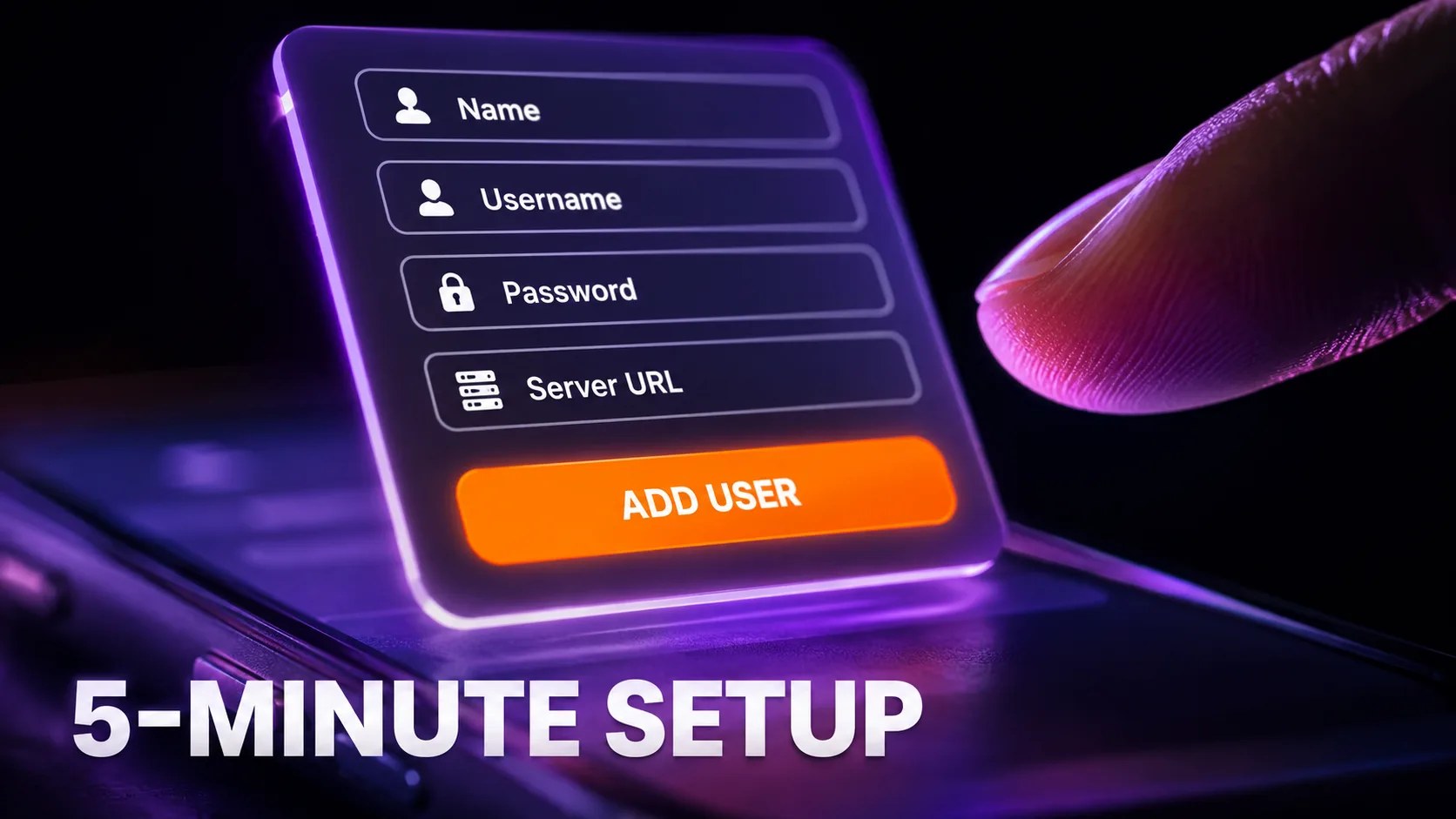
This is the number-one cause of “IPTV Smarters Pro not working,” and it is not close. The server URL has to be entered exactly as your provider sent it, and there are four ways to get it wrong:
- The missing port. If we sent you
http://example-server.com:8080, the:8080is part of the address. Without it the app talks to the wrong door and reports bad credentials. - http vs https. Use whichever we sent. Swapping one for the other will fail even though the rest is correct.
- A trailing slash or a stray space. Phone keyboards love adding a space after a paste. Tap into the field and check the very end.
- Autocapitalisation. Usernames and passwords are case-sensitive. An iPhone that turns
a7f2intoA7f2breaks the login silently.
The reliable method: paste, do not type. Open the message we sent, copy each value, and paste it straight into the field. If you must type it, do it with the keyboard’s autocorrect and autocapitalise switched off.
Fix 2 — Confirm the Subscription Is Actually Live
An expired plan produces exactly the same error message as a typo, which is why so many people spend an evening re-entering credentials that were never wrong. Check the expiry date on the message we sent when you subscribed, or send us the username on WhatsApp and we will tell you the exact status in a minute.
Two things worth knowing here. First, activation runs on the credentials, not on the payment — a renewal extends the same login rather than issuing a new one, so you should never have to re-enter anything after renewing. Second, if you were on a free trial, trials are short by design; the trial ending looks identical to a fault.
Fix 3 — Use the Xtream Codes API, Not the M3U Link
IPTV Smarters Pro offers two ways in: Login with Xtream Codes API and Load Your Playlist or File/URL. They pull the same content, but they do not behave the same when something goes wrong.
The API login asks the server for a structured response — categories, channels, movies, series, the guide — and rebuilds them each time it refreshes. The M3U route downloads one long text file and parses it locally. If that file is truncated by a slow connection, you get a partial list or an empty screen with no error at all. That is the classic “app opens but there are no channels” report.
If you are on the playlist method and things are unstable, delete the profile and add it again with the API. We break the two methods down properly in Xtream Codes vs M3U.
Delete, do not edit. Editing a broken profile often leaves the old cached playlist attached to it. Remove the user entirely, close the app, reopen it, and add the login fresh.
Fix 4 — Switch the Stream Format
Under Settings → Stream Format you can choose between HLS and MPEG-TS (some builds label it TS or “Auto”). Channels that refuse to start, start and freeze after two seconds, or play sound over a black screen are very often fixed by flipping this single setting.
There is no universally correct answer — it depends on how the individual channel is packaged. Try the other format, restart the app, and test the same channel again. If half your channels prefer one format and half the other, set the format per-channel rather than globally where your build allows it.
Fix 5 — Change the Decoder
In Settings → Player Settings you can pick Hardware, Software or Native decoding.
- Hardware is the default and the right choice on almost any device made in the last five years. It is smooth and it barely warms the chip.
- Software is the fix for green screens, torn frames, blocky artefacts or audio drifting out of sync. It costs more processing power but it handles odd codecs that the hardware path refuses.
- Native hands playback to the operating system’s own player. Worth a try when the other two both fail on the same channel.
A green or pink screen with working audio is a decoder problem virtually every time. Switch to software decoding for that channel and it clears.
Fix 6 — Prove the Connection Before Blaming the App
Run a speed test on the streaming device itself. The numbers that matter:
- 15 Mbps — the floor. Below this, expect trouble on anything above SD.
- 25 Mbps — comfortable HD on a single stream.
- 50 Mbps+ — 4K, or several devices watching at once.
Raw speed is only half the story. Jitter and packet loss break live streams long before bandwidth does, which is why a “100 Mbps” connection on congested Wi-Fi can stutter while a wired 30 Mbps line is flawless. If the main TV is on Wi-Fi, run an Ethernet cable to it. It is the single biggest reliability upgrade available and it costs the price of a cable — the full reasoning is in our IPTV buffering fix guide.
Fix 7 — Rule Out Peak Hours
If the app misbehaves between roughly 19:00 and 23:00 and is perfect at midday, nothing is broken — you are meeting congestion, either on your ISP’s local segment or on a popular channel’s source. Test the exact same channel the next morning. If it plays cleanly, the app, your login and your settings are all fine, and the fix lives in the network rather than the player.
Fix 8 — Repair the TV Guide
A blank or wrong EPG is cosmetic — the channels still play — but it makes the app feel broken. Two separate problems, two separate fixes:
- Guide completely empty: Settings → EPG → Refresh/Update EPG. Give it a few minutes; a full guide is a large download. If it stays empty after a restart, ask us for the standalone EPG URL and add it manually — our EPG guide explains why it happens.
- Guide loads but the times are wrong: the source is published in another timezone. Settings → EPG → Time Shift and offset by the number of hours you are out. This is a one-time change.
Fix 9 — “Max Connections Reached”
This message means your login is already in use on as many devices as your plan allows. Usually something you forgot about is holding the stream: a phone with the app still open in the background, a bedroom box on standby rather than off, or a family member watching on the same credentials.
Force-close the app on every other device, wait about sixty seconds for the server session to time out, then try again. If you genuinely need more than one stream at a time, tell us and we will add connections to the line rather than selling you a second subscription.
Fix 10 — Clear the Cache, Then Reinstall
Smart players cache channel lists, posters and guide data aggressively, and after a few months that cache goes stale. Symptoms: the app is slow to open, categories are missing, or it crashes on launch.
- Clear the cache inside the app — Settings → Clear Cache. Your login survives this.
- Clear it at the OS level — on Android and Fire TV, Settings → Apps → IPTV Smarters Pro → Clear cache. Then Clear data if the cache alone does not do it; this one wipes your login, so have it to hand.
- Check free storage. A Fire TV Stick under about 500 MB free will crash players at random. Uninstall what you do not use.
- Reinstall last. Delete the app, restart the device, install it again, log back in. Re-entering the login takes thirty seconds.
Fix 11 — Roll Back or Sidestep a Bad App Update
Player apps in this category update constantly, and occasionally a release breaks playback on one particular device generation. If everything was fine until the app updated itself, that is your suspect.
Two ways out. Install the previous version manually from the source your provider links — never from a random “latest APK” site, which is the main malware risk in this whole space. Or simply move to a different player with the same login: Smarters Player Lite on Apple hardware, TiviMate or XCIPTV on Android. Your credentials work in all of them, which is exactly why keeping a second player installed is such cheap insurance. Our player comparison covers which one suits which device.
Fix 12 — Rule Out an ISP Block
Some providers throttle or block streaming ports. The tell is specific: the app works perfectly on mobile data but fails on home Wi-Fi, with the same device and the same login.
If that describes your situation, the fix is not in the app. Test once on a phone hotspot to confirm, then either ask your ISP about the blocked port or route the device differently. Everything else in this guide will be a waste of time until that is settled.
Never enter payment details inside a player app. IPTV Smarters Pro is a player, like VLC — it has nothing to sell you. Your TrendyScreen subscription is paid on our site only. A player that asks for card details is either a clone or malware.
When It Genuinely Is the Provider
Sometimes the app really is innocent. The signs are consistent:
- The same login fails in two different players on two different devices.
- Whole categories vanish at once rather than individual channels.
- Failures cluster on one source — every channel from one country dies while the rest are fine.
- It breaks at the same hour every evening, across your whole household.
That is the point to stop troubleshooting and message support. Send four things and you will get a straight answer instead of a script: your username, the device, the exact wording of the error, and whether it also fails on mobile data. A provider that cannot answer that within a working day is the actual problem — which is the standard we hold ourselves to and what we walk through in the TrendyScreen review.
Keeping It From Happening Again
- Save your credentials somewhere durable. A note in your password manager beats scrolling three months of WhatsApp at 21:00 on a match night.
- Keep a second player installed with the same login, already configured. A bad update then costs you ten seconds, not an evening.
- Wire the main TV. Most “the app is broken” reports are Wi-Fi reports in disguise.
- Clear the cache once a month. Thirty seconds, and it prevents the slow decay that makes people reinstall.
- Turn off auto-update for the player on a device that is working perfectly, and update deliberately instead.
Further reading
- IPPlayTV on Smarters login screens — screenshots of each field if you are unsure which value goes where.
- Tivo8K on stream quality — what bitrate and resolution genuinely require, when a “fix” is really a bandwidth ceiling.
Frequently Asked Questions
Why does IPTV Smarters Pro say “invalid username or password” when my details are right?
Almost always a missing port number in the server URL, a capital letter added by autocorrect, or a trailing space from a paste. After that, the next candidate is an expired subscription — the app shows the identical message for both. Copy and paste each field, then confirm the expiry date with your provider.
Why is my IPTV Smarters Pro screen black with sound playing?
That combination is a decoder or stream-format problem, not a subscription problem. Switch the decoder to software in Player Settings, and flip the stream format between HLS and MPEG-TS. One of the two clears it in the large majority of cases.
The app opens but there are no channels at all. What now?
Your profile loaded without its playlist. Delete the user entirely, close the app, reopen it, and add the login again using Login with Xtream Codes API rather than the M3U playlist option — the API rebuilds the full category structure instead of relying on one downloaded file.
Does reinstalling IPTV Smarters Pro delete my subscription?
No. The subscription lives on the provider’s server and is tied to your credentials, not to the app. Reinstalling wipes only the local profile; enter the same username, password and server URL and everything comes straight back.
Why does it work on mobile data but not on my home Wi-Fi?
That is the signature of an ISP restriction or a router setting blocking the streaming port. No in-app setting will fix it. Confirm with a hotspot test, then take it up with your ISP or change how the device connects.
Should I switch players instead of fixing this?
If a second player works with the same login, yes — that is the fastest route back to watching, and your credentials are portable. Smarters Player Lite is the easy pick on Apple hardware; TiviMate and XCIPTV are the Android favourites. Independent lineups such as KiloTV are also a useful reference when you are comparing what a service actually carries.
A player is only as good as the line behind it.
TrendyScreen runs 75,000+ live channels and 260,000+ titles on servers built to stay up — 99.99% uptime, 24/7 support, from $5 a month. Works in Smarters Pro, Lite, TiviMate and XCIPTV alike.
Keep Reading
What Is IPTV and How Does It Work? A Plain-English Guide for 2026
IPTV is live TV delivered over your internet connection instead of a dish or a cable. What it stands for,…
Read more →
TrendyScreen Review 2026: Plans, Channels and What You Actually Get
An honest look at TrendyScreen — the 75,000+ channel library, the $15 to $120 price ladder, the $150 Lifetime plan…
Read more →
The Best IPTV Player Apps in 2026: TiviMate, IPTV Smarters and the Rest, Compared
The box gets the headlines, but the player app decides how IPTV actually feels. Here is the honest comparison —…
Read more →